November 1, 2026
RunCulture now works with Garmin!
Big news: RunCulture now works with Garmin. Connect your account to Garmin Connect™. Your workouts for the next 14 days show up on your Garmin watch, step by step and with a pace target, and you can send your routes along as courses. Here's how it works and how we handle your data.
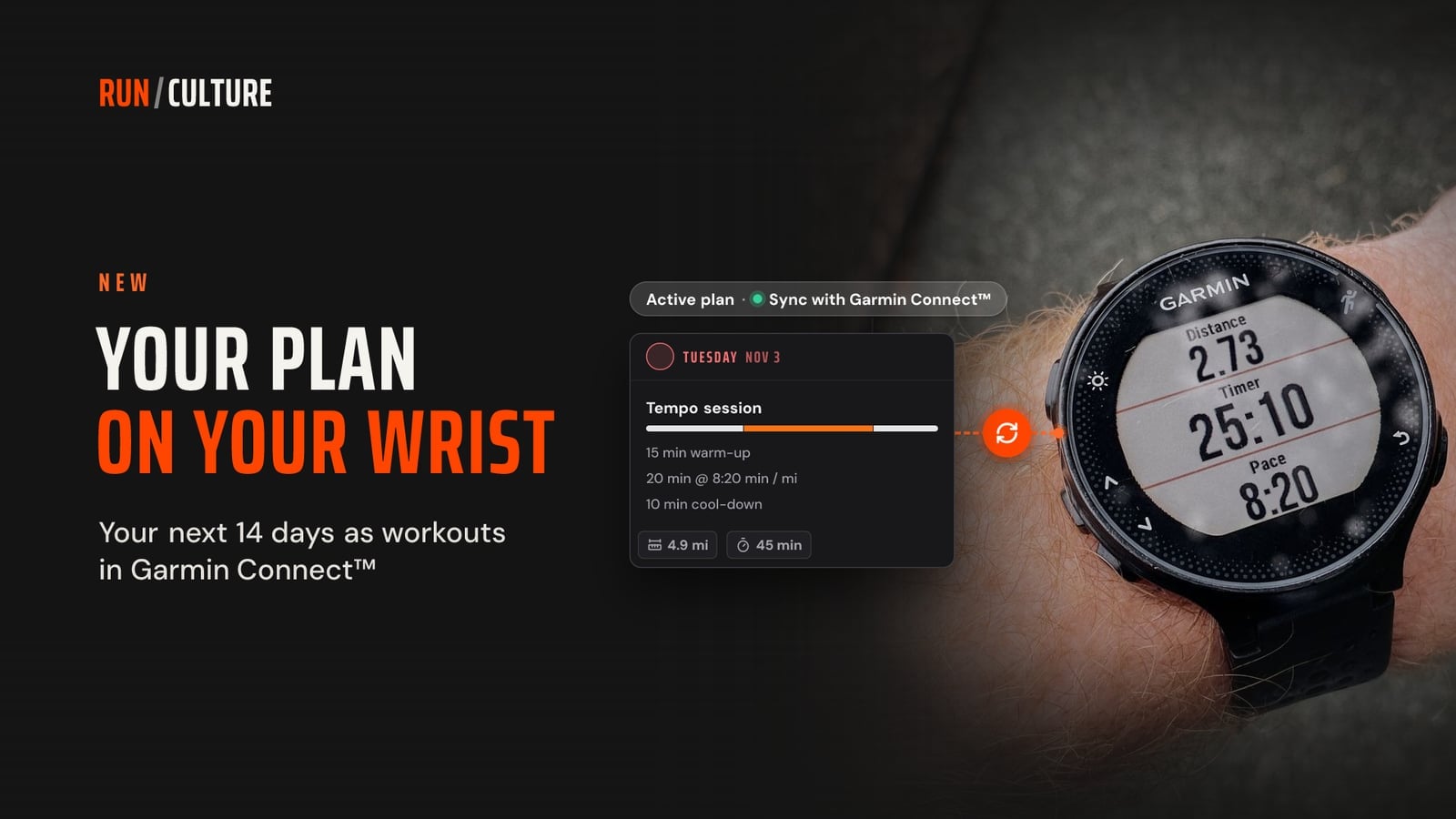
Big news: RunCulture now works with Garmin! It was one of your most requested features, and starting today, you can connect your RunCulture account to Garmin Connect™.
Checking your plan on your phone and trying to remember how many repeats you have left mid-run: those days are over. Once you connect, your workouts show up on your watch. Your watch guides you through each workout step by step, from warm-up to cool-down, and alerts you when you're running too fast or too slow. You can send your routes along as courses.
At a glance:
How to connect
You can also connect right from your plan. Click the Active plan · Sync with Garmin Connect™ badge at the top of your plan page and choose Connect to Garmin Connect™ in the pop-up. After connecting, you'll return to the same pop-up with syncing already turned on. Click Save, and your plan goes to your watch.
You'll need a RunCulture account and a Garmin Connect™ account that your watch syncs with. Right now, the connection works with every RunCulture account. A premium account is coming later, and we'll let you know which features it includes when the time comes.
Your plan on your watch
At the top of your plan page, you'll see the Active plan · Sync with Garmin Connect™ badge. Click it to open the Active plan pop-up. Turn on Sync with Garmin Connect™ and click Save. Your upcoming workouts will then show up in Garmin Connect™. Under Last sync, the pop-up shows when your plan last synced. Click the badge above to preview the pop-up.
The dot in the badge shows the status:
You'll also find the same pop-up in your plan under Share and export, at Send to Garmin Connect™.
One plan at a time: your active plan
One plan at a time goes to your watch: your active plan. If you have more than one plan, other plans show a Make active · Sync with Garmin Connect™ badge with a red dot: that plan isn't syncing yet. If you're already syncing a plan, that badge opens the same pop-up with syncing already turned on. When you click Save, this becomes your active plan and goes to your watch. We then remove the upcoming workouts of your previous plan from Garmin Connect™.
If another plan becomes your active plan without you saving in this pop-up, syncing stays with your previous plan. The red dot and a message in the pop-up let you know. Click Save to switch it over.
What goes to your watch
Names, descriptions, and paces are in your own language and in kilometers or miles, just like you use RunCulture.
Pace targets
On every step with a pace, your watch alerts you when you're outside it. The center is the pace from your workout card. The leeway around it depends on the pace itself: the slower the pace, the wider the range, because GPS fluctuates more at an easy pace. Easy segments always get a little extra room. A few examples:
Not every step gets a target. You run recovery and walking between repeats, workouts by feel (like fartlek and hills), and run/walk without a pace target. If such a step has a pace on your workout card, you'll still see it as a note.
In the pop-up, you decide how strict your watch is:
When your plan changes, your watch follows
Updates happen in the background. You don't have to do anything.
On your watch
Your workouts appear on their day in your Garmin Connect™ calendar. Once your watch syncs with the Garmin Connect™ app, they're on your watch too. On the day itself, you'll find your workout under your workouts or in your watch's training calendar. The name of that menu varies by watch.
Done with your run? You give feedback on your workout in RunCulture, just like before.
Your routes on your watch
Send a saved route from the route planner to Garmin Connect™ as a course in one step, including drinking water points along the way. If a workout has a linked route, it goes to your watch along with your plan. If you'd rather it didn't, turn off Include linked routes in the pop-up. Read all about routes in Your route, straight to your Garmin watch.
Your privacy
You'll find everything in our privacy statement, in section 10 about the Garmin Connect™ integration.
Stop syncing or disconnect
Have a Garmin watch? Open your profile and connect Garmin Connect™.