November 6, 2026
Your training week at your fingertips
Explore your weeks in the updated dashboard, edit sessions straight from the homepage, and see how each run is structured with the new pace bar.
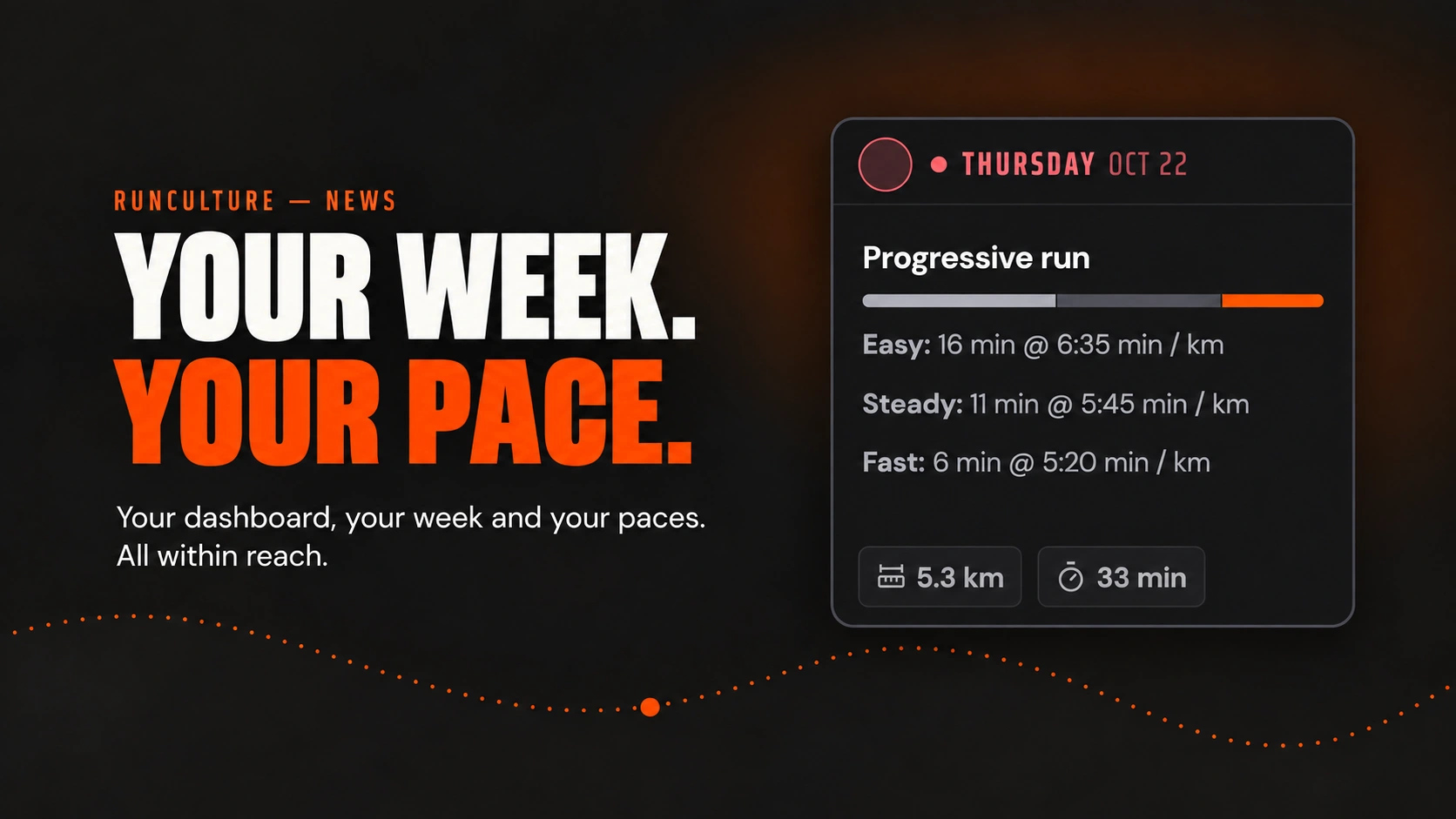
Check what is on the schedule today. Mark a session as done, adjust a training day, or look ahead to next week. You no longer need to open your full plan every time: your training week is ready in your dashboard and on the homepage.
The training cards have something new too. A pace bar below the title shows the structure of your run. It helps you spot the difference between an easy run, short strides, and a session that gradually picks up the pace.
Your weeks in one overview
In your dashboard, a bar for each week of your plan sits above the training week. The taller the bar, the more running distance is scheduled. Now marks the current week.
On desktop, hover over a bar to see the distance. For the current and previous weeks, you can also see how many sessions you have marked as done, such as 2/3 workouts. Click a week and the training days below change with it. Click that selected week again to return to the current week. On mobile, tap a bar and swipe sideways to explore the rest of your plan.
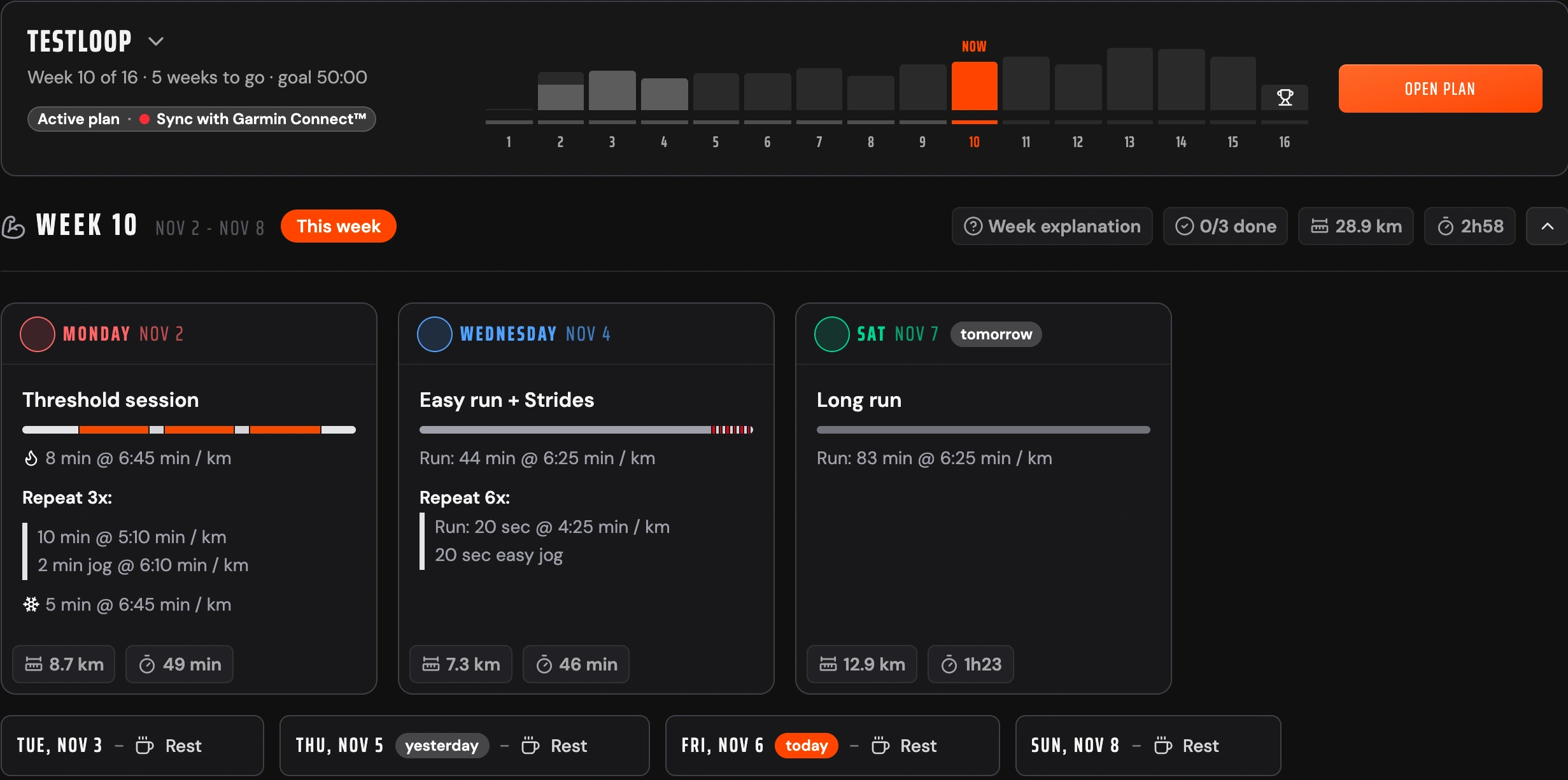
1. Choose your week
Each bar is a week. Click to view its sessions below; click again to return to the current week.
Have more than one active plan? Choose the one you want to view and click Make active. That plan then comes first when you open your dashboard.
Pick up where you left off on the homepage
If you are signed in and have an active plan, the homepage and the plans page now show Pick up where you left off, with your current training week below or beside it.
This is your own week, including changes you have already saved. You can mark a session as done, edit a session, or open the week explanation right there. The day menu also lets you change the session type, for example to Rest when your schedule calls for it. Your changes belong to the same plan you use in your dashboard and on the plan page.
Want to look further ahead? Open plan takes you to your full plan; Go to your dashboard opens the week overview. If you do not have an active plan, the example week remains visible.
The pace bar: your run at a glance
The new bar below the session title follows the parts of your run from left to right. Light gray shades represent easier sections; darker grays, orange, and red show the faster zones. The meaning stays the same in light and dark mode.
For a Progressive Run, you can see the build-up toward faster blocks. For intervals, you can spot the alternating efforts and recoveries. The text below the bar still gives you the exact durations and paces to follow.
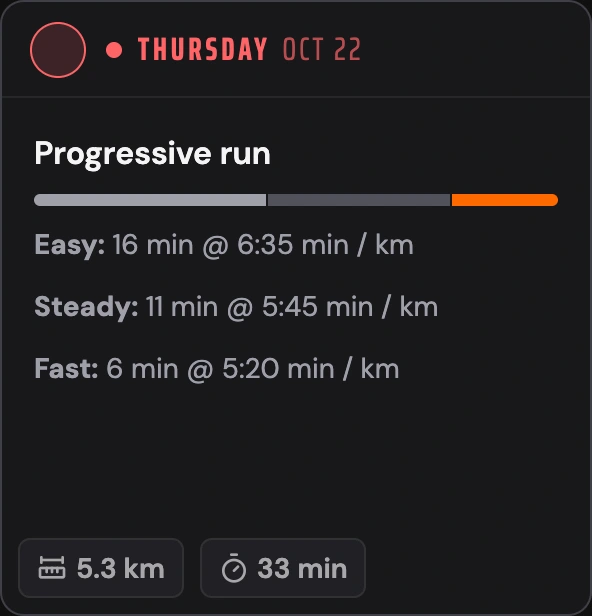
1. From easy to faster
The three blocks in the pace bar follow this Progressive Run: Easy, Steady, and Fast.
Matching colors in the week explanation
Open Week explanation and look at Paces. The pace zones for that week appear together, using the same colors as the training cards. You can see which days use each zone and the corresponding pace. Tap or click a row to read what that pace is for.
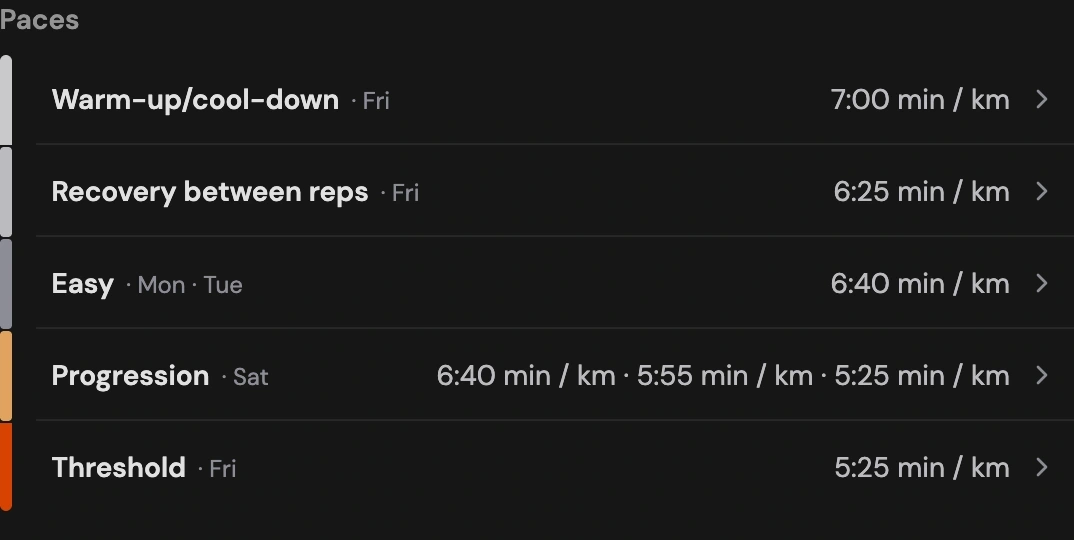
1. Recognize the same colors
The strip on the left matches the pace bars in your training cards. Lighter gray shades represent easier sections.
Open your dashboard and try it with your own week. There is no need to create a new plan to use the updated view.