September 13, 2026
How did your training go? Add feedback to your running plan
Record how hard a session felt, whether you completed it, and anything you want to remember. A short reflection that could help us tailor your plan in the future — only with your permission.
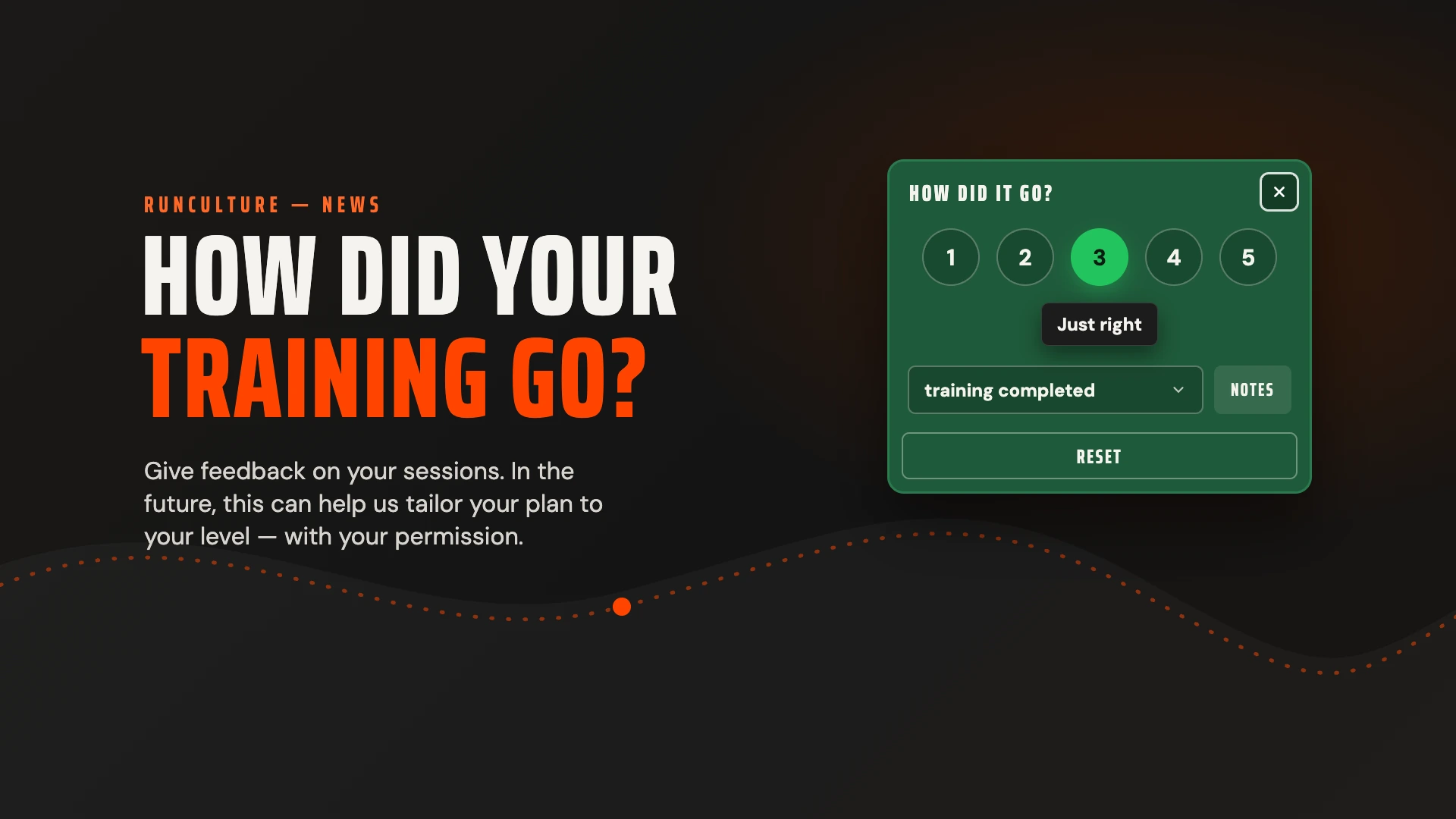
Your plan tells you what is scheduled. But you know best how a session actually felt. Was it an easy run, just the right challenge, or harder than expected? You can record that for every session in your personal running plan.
When you check off a session, a score of 3, Just right, is saved right away. Did it feel different? Then choose another score, indicate whether you completed the whole session, and optionally add a short note. This lets you keep your own experience alongside the schedule.
Step 1: check off your session
Log in and open a personal plan linked to your account. In the session's day header, click the circle to check off the session. This immediately saves feedback with a score of 3, Just right. You'll see the message “Feedback saved,” and the feedback panel opens over the card with 3 already selected.
Did the session feel just right? Then there's nothing else to do. There is nothing new to save yet, so only Reset appears at the bottom. Close the panel with the X in the top-right corner or press Escape.
SaturdayOct 10
Long run
Run: 81 min @ 6:15 min / km10:05 min / mi
It works the same way on your phone. In the week list, tap the circle in front of the session: a score of 3 is saved right away there too, and the feedback opens in that session's row.
The test run is the only exception. There, you also enter your distance and time, so no score is saved yet when you check it off.
Step 2: choose how hard it felt
Did the session feel different from just right? Choose one of the five scores:
When you move your pointer over a number, its description appears right away in the label below the numbers. The number is only selected when you click it. With a keyboard, it's even faster: press 1 through 5 to choose a score and Enter to save.
This is not a grade for your performance. It describes how you experienced the session. An easy run may feel different from an intense interval session.
As soon as you change something, Save appears next to Reset.
SaturdayOct 10
Long run
Run: 81 min @ 6:15 min / km10:05 min / mi
Step 3: indicate what you completed
Below the scores, choose how much of the session you completed:
If you choose not completed, the question about how hard it felt disappears. There is no need to rate how a session felt if you did not do it. After saving, the circle in the day header shows an X instead of a check mark, and the session doesn't count as done.
On desktop, there's also a shortcut. Hover over the circle of a session that is still open: a circle with an X appears to its right. Click it to mark the session as not completed right away. On a touchscreen, use the … menu instead and choose Mark as skipped.
Step 4: optionally add a note
Click Notes to open the text field. A short note can help you understand your score later. For example: “Low on energy after a busy day at work,” “Skipped the last two repetitions,” or “Felt easier than last week.”
A note is optional. The score and completion status are enough on their own.
Step 5: save and review later
Changed something? Then click Save or press Enter. The panel closes and you'll see the message “Feedback saved.” Changed your mind? Close the panel with the X or press Escape. Your previously saved feedback stays as it was.
Once you check off a session, the day header shows a single check mark, including after you've given feedback. Click that check mark later to reopen and edit your feedback. Click it again to close the panel. For a session you marked as not completed, click the X.
SaturdayOct 10
Long run
Run: 81 min @ 6:15 min / km10:05 min / mi
Click the check mark in the day header to reopen or close your feedback.
On your phone, tap the check mark in the session's row to open or close the feedback.
So clicking the check mark no longer unchecks the session. To do that, use the … menu and choose Remove mark, or choose not completed as the completion status.
Removing feedback
Reset removes your feedback, including your note. The check mark disappears too: the session is open again, as if you had never checked it off.
A step toward a plan that fits you better
For now, feedback records how a training session went. Adding feedback does not automatically change your plan.
In the future, we want to use this feedback to help the planning model match your level more closely. If sessions repeatedly feel too hard or too easy, that could be a reason to suggest an adjustment. This would not be based on a single score, but would take into account the session type, how much you completed, and your experience across several sessions.
This is a direction we want to develop, not a feature that is already running automatically. We will not use your feedback to dynamically adjust your plan without your explicit permission. Giving feedback does not itself grant that permission. Before you opt into such a feature, we should make clear which data we use and what might change in your plan.
For now, start with the basics: open your plans, check off your session, and record how it went.